
AI Meeting Notetakers for Small Business: Big Time Savings, Real Privacy Risks, and a Safe Setup (2026)
Last updated:
Short answer: AI meeting notetakers can save a small business real time on notes and follow-ups, but they record and store everything said on a call. Use them safely by choosing a company-owned tool (such as the one built into Microsoft Teams or Zoom), blocking unapproved bots through Microsoft 365 app consent, telling participants when a meeting is recorded, and setting how long transcripts are kept.
You join a Monday Teams call with a new client. Before anyone says hello, a little square pops into the participant list: “Otter.ai Notetaker” or “Fireflies.ai Notetaker” or “Read.ai.” Nobody on your team invited it. It turns out a salesperson connected a free notetaker to their work calendar months ago, and it has been quietly joining, recording, and transcribing every meeting on that calendar ever since.
That is the double edge of AI meeting notetakers in 2026. They are one of the most genuinely useful AI tools a small business can adopt. They are also one of the easiest ways for sensitive conversations to end up stored in an account your company does not own, with a vendor you never reviewed, under terms nobody read.
This guide is for owners and office managers at small businesses across Portland, Lake Oswego, Tualatin, Beaverton, Hillsboro, and Vancouver WA. We will cover what these tools actually do, where they help, where they create risk, how recording consent works in Oregon and Washington at a high level, and a practical setup you can put in place this month.
This article is general information about IT and security practices. It is not legal advice. For questions about recording consent or industry regulations, talk with your attorney.
What do AI meeting notetakers actually do?
An AI notetaker listens to a meeting and turns it into text and summaries. Most products do some combination of the following:
- Record audio, and often video, of the meeting
- Transcribe speech to text and label who said what
- Summarize the discussion into key points, decisions, and action items
- Answer questions afterward, like “What did we promise the client on pricing?”
- Share the notes by email or push them into a CRM, project tool, or shared folder
They show up in three main ways, and the difference matters for security.
1. Built into the meeting platform you already pay for
Microsoft Teams (with Copilot or Teams Premium features), Zoom (AI Companion), and Google Meet (Gemini) can all summarize meetings. Because these features live inside the platform, the recordings and transcripts usually stay inside your existing Microsoft 365, Zoom, or Google Workspace account, under the admin controls, retention settings, and agreements you already have.
2. Third-party bots that join the call
Tools like Otter.ai, Fireflies.ai, Fathom, and Read.ai typically connect to a user’s calendar and send a bot into meetings as an extra participant. The recording and transcript then live on that vendor’s platform. If the user signed up with a personal or free account, the company may have no visibility or control at all.
3. Apps that capture audio on the device
Some apps record directly from a laptop or phone microphone, including in-person meetings. There is no visible bot in the participant list, which makes them convenient and also easy to use without anyone else knowing.
Where do AI notetakers genuinely help a small business?
We are not anti-notetaker. Used well, they solve real problems for small teams:
- Nobody has to be the note-taker. The person who usually types notes can actually participate.
- Better follow-through. Action items with names attached are harder to forget.
- Easier catch-up. Someone who missed the meeting can read a summary instead of scheduling another call.
- Searchable history. “When did the client approve that change?” becomes a quick search instead of a debate.
- Accessibility. Live captions and transcripts help team members who are hard of hearing or working in a second language.
- Training. Sales and support teams can review how calls went, with the right consent in place.
For a five-to-fifty person company where everyone wears several hats, those savings add up. The goal is to keep them while avoiding the problems below.
What are the real risks of AI meeting notetakers?
Sensitive conversations end up somewhere you do not control
Think about what gets said in a normal week of meetings: client financials, employee performance issues, pricing strategy, health information, legal concerns, and occasionally someone reading a password or a bank account number out loud. A notetaker captures all of it, word for word, and stores it. If that storage is a free personal account on a third-party platform, the business loses control over who can see it, how long it is kept, and whether it is used to improve the vendor’s AI models.
Auto-join turns one person’s choice into everyone’s exposure
Many third-party notetakers are designed to join every meeting on a connected calendar by default. That includes meetings the user did not organize, external meetings with clients and partners, and meetings where the topic is confidential. Some tools also email the summary to every attendee afterward, which can push internal remarks to people outside the company.
Recording consent problems
Recording laws vary by state and by type of conversation. If a notetaker records people who were not told, your business can create legal and reputational trouble even when nobody meant harm. We cover the Oregon and Washington basics in the next section.
Over-permissioned calendar and mailbox access
To auto-join meetings, a notetaker usually asks for access to the user’s calendar, and sometimes contacts, email, or files. When an employee clicks “Accept” on that consent screen with a work Microsoft 365 account, that third-party app may keep that access until someone removes it, even after the employee stops using the tool or leaves the company.
Inaccurate summaries treated as the official record
AI summaries can miss nuance, mix up who said what, or confidently state a decision that was never actually made. If staff treat AI notes as the official record for client commitments, HR conversations, or contract terms without a human check, errors become expensive.
Industry rules still apply
If you are a healthcare practice, a notetaker that hears patient information is handling protected health information, and HIPAA generally requires a business associate agreement with any vendor that stores it. Law firms have confidentiality and privilege concerns. CPA and tax firms have FTC Safeguards Rule obligations for customer information. A notetaker is just another vendor touching that data, and it needs the same review. (We go deeper on each in our AI and HIPAA guide for Portland healthcare practices, AI for law firms, and AI for CPAs and financial advisors.)
A new phishing angle
Meeting summaries and “your recording is ready” emails are now normal in most inboxes. Attackers know that, and fake notification emails with a link to “view the transcript” are an easy lure for credential theft. Treat unexpected recap emails, especially from tools your company does not use, with the same caution as any other link. Good email security (we use INKY) and MFA help here, and our AI cybersecurity guide for small business covers the wider picture.
Recording consent in Oregon and Washington: the practical version
We are an IT company, not a law firm, so treat this as a starting point for a conversation with your attorney.
- Washington generally requires the consent of all parties to record a private conversation or communication. An announcement at the start of a recording, captured on the recording, is commonly used to meet that requirement.
- Oregon treats phone and other electronic communications differently from in-person conversations. In-person conversations generally require that all participants be informed they are being recorded. Rules for calls and video meetings can differ, and that is exactly where people get tripped up.
- Multi-state calls are common here. A Portland business talking to a client in Vancouver WA, or a vendor in California, may be subject to stricter rules than its own state.
For a small business, the simplest safe policy is the same everywhere: announce the notetaker, get agreement from everyone in the meeting, and turn it off when anyone objects. Platform features help. Teams and Zoom show a recording or transcription banner to participants, which is one reason built-in tools are easier to manage than device apps that record silently.
A safe AI notetaker setup for small businesses
Here is the approach we use with clients. Most small businesses can get through it in a few weeks.
Step 1: Find out what is already in use
Before writing a policy, find out what is already happening. In Microsoft Entra ID (formerly Azure AD), review Enterprise applications for notetaker apps users have granted access to, and check what permissions each holds. Ask your team directly, without blame, which tools they use and why. In our experience, people adopt notetakers because they are useful, not because they want to cause problems. Our shadow AI guide walks through this discovery process in more detail.
Step 2: Pick one approved notetaker
Give people a sanctioned option so they do not go back to free tools. For most of our Microsoft 365 clients, the first choice to evaluate is what is built into Teams, because recordings and transcripts stay in your tenant with your existing retention and permissions. If you are a Zoom shop, AI Companion plays the same role. If a third-party tool fits your workflow better, that can be fine too; just review it the way you would any vendor (see Step 5) and buy business accounts the company owns.
Step 3: Lock down app consent in Microsoft 365
In Entra ID, change user consent settings so employees cannot grant broad permissions to unknown third-party apps on their own. Turn on the admin consent workflow so people can request an app and IT can approve it after a quick review. Then remove notetaker apps you did not approve and revoke their access. This one change stops the “someone clicked Accept two years ago” problem from growing back.
Step 4: Configure meeting and recording settings
In Teams (and similarly in Zoom), set policies for who can record and transcribe, where recordings are saved, and how long they are kept. Use lobby settings so external participants, including bots, wait to be admitted instead of joining on their own. For Copilot in Teams, decide whether meeting summaries should depend on a saved transcript so participants can see that transcription is on. Our Microsoft 365 Copilot security guide covers the related permission cleanup.
Step 5: Review any third-party notetaker vendor
Before approving an outside tool, get clear answers to these questions:
- Where are recordings and transcripts stored, and can we choose the region?
- Is our data used to train the vendor’s AI models, and can we turn that off at the company level?
- Can admins control settings, see users, and remove access centrally?
- Does it support single sign-on with our Microsoft 365 accounts and enforce MFA?
- How long is data kept, and can we set our own retention and deletion?
- Does it auto-join meetings or auto-share summaries by default, and can we disable that?
- Will the vendor sign a business associate agreement (healthcare) or other contract terms we need?
- What happens to our data if we cancel?
If a vendor cannot answer these clearly, that is your answer.
Step 6: Write it into your AI acceptable use policy
Add a short notetaker section to your AI policy. Keep it to rules people can remember:
- Only the company-approved notetaker, signed in with your work account
- Announce it at the start of every meeting and stop if anyone objects
- No notetakers in HR, disciplinary, legal, medical, or other confidential meetings unless the organizer approves
- No auto-join on external meetings unless the client has agreed
- Never read passwords, card numbers, or bank details aloud on a recorded call
- A person reviews the summary before it goes to a client or becomes the official record
- Recordings follow the company retention schedule, not “forever”
If you do not have an AI policy yet, our AI acceptable use policy guide for small businesses includes a template you can adapt.
Step 7: Train the team and revisit quarterly
Ten minutes in a staff meeting is enough to explain the approved tool, how to announce it, and when to turn it off. New AI features show up in software you already own every few months, so put a quick review on the calendar each quarter.
Built-in vs. third-party notetakers at a glance
| Question | Built into Teams, Zoom, or Meet | Third-party notetaker bot |
|---|---|---|
| Where data lives | Usually your existing Microsoft 365, Zoom, or Google account | The notetaker vendor’s platform |
| Admin control | Managed with your existing admin settings | Depends on plan; free tiers often have none |
| Visibility to attendees | Platform recording or transcription banner | Bot appears as a participant; device apps may show nothing |
| Extra vendor review needed | Usually covered by your existing agreement | Yes, a separate review and contract |
| Cross-platform meetings | Works best inside its own platform | Often joins Teams, Zoom, and Meet alike |
Neither option is automatically right. The safe choice is the one your company owns, controls, and has configured on purpose.
Quick checklist: AI meeting notetakers
- ☐ Inventory notetaker apps connected to work accounts
- ☐ Choose one approved notetaker and buy company-owned accounts
- ☐ Restrict user consent to third-party apps in Entra ID and enable admin consent requests
- ☐ Remove unapproved notetaker apps and revoke their access
- ☐ Set recording, transcription, lobby, and retention policies in Teams or Zoom
- ☐ Review third-party vendors for training use, retention, SSO, and BAA if needed
- ☐ Add notetaker rules to your AI acceptable use policy
- ☐ Train staff on announcing, consent, and confidential meetings
- ☐ Review settings and new AI features quarterly
How PDX IT helps
PDX Information Technology Services is a managed IT provider based in Tualatin, supporting small businesses across the Portland metro and Vancouver WA. For AI notetakers, that usually means we:
- Find the notetaker and AI apps already connected to your Microsoft 365 accounts
- Lock down third-party app consent and set up an approval process
- Configure Teams or Zoom recording, transcription, lobby, and retention settings
- Help you compare built-in options with third-party tools and review vendors
- Add practical notetaker rules to your AI policy and train your team
- Back it up with email security, MFA, and ongoing monitoring as part of managed IT services
If you are in a regulated industry, our compliance services help connect these settings to your HIPAA, FTC Safeguards, or other obligations. And if you are just getting started with AI overall, read AI for small business: practical productivity without the hype.
Want a second set of eyes on your meeting tools?
If you are not sure which notetakers are already listening to your meetings, we can help you find out and set things up safely. No pressure, just a straightforward conversation about what you use today and what would make sense.
FAQ: AI meeting notetakers
Are AI meeting notetakers safe for business use?
They can be, when the company chooses the tool, owns the accounts, and configures it on purpose. The risk comes from free or personal accounts, auto-join settings, broad calendar and mailbox permissions, and recordings kept with no retention limit. Pick one approved tool, restrict app consent in Microsoft 365, and set clear rules for when the notetaker is used.
Is it legal to use an AI notetaker in Oregon or Washington?
Usually yes, if you handle consent correctly. Washington generally requires all parties to consent to recording a private conversation. Oregon has different rules for in-person conversations and electronic communications, and calls often cross state lines. The simple safe practice is to announce the notetaker, get everyone’s agreement, and stop recording if anyone objects. This is not legal advice, so confirm the details with your attorney.
Should we use the notetaker built into Teams or a tool like Otter.ai?
For many Microsoft 365 businesses, the built-in Teams features are the first option to evaluate because recordings and transcripts stay in your own tenant under your existing controls. A third-party tool can make sense if it fits your workflow better or you meet across several platforms, as long as you buy business accounts and review the vendor’s data handling first.
Do AI notetakers use our meetings to train their AI?
It depends on the vendor, the plan, and the settings. Some business plans state customer data is not used for training, while some free tiers have broader terms. Check the vendor’s current terms and admin settings, and choose a plan that lets the company control this rather than leaving it to each user.
How do we stop a notetaker bot that keeps joining our meetings?
Ask the person whose calendar it is connected to, then remove the app’s access. In Microsoft 365, admins can review and remove third-party apps in Entra ID Enterprise applications, restrict user consent so it cannot be reconnected without approval, and use Teams lobby settings so bots and external participants must be admitted.
Can healthcare practices use AI notetakers?
Only with care. If the notetaker hears patient information, it handles protected health information, and HIPAA generally requires a business associate agreement with the vendor, along with appropriate access controls and retention. Many practices keep notetakers out of patient conversations entirely unless the tool is specifically covered for that use.
Should we keep meeting recordings and transcripts forever?
No. Keeping everything forever increases the amount of sensitive data that could be exposed in a breach or requested in a dispute. Set a retention period that fits your business and any legal or industry requirements, and let the platform delete recordings automatically after that.
What should never be said on a recorded meeting?
Passwords, MFA codes, full card numbers, bank account and routing numbers, and Social Security numbers. If someone needs that information, share it through a secure method your company already uses, and never trust a payment change request that arrives only by meeting or email without a call-back to a known number.
This article is general information about IT and security practices. It is not legal advice. For questions about recording consent, HIPAA, or other regulations, consult your attorney or compliance advisor.
Request an IT assessment
Tell us a little about your business and a PDX IT team member will follow up to schedule an assessment. Prefer to talk? Call 971-331-4871.

About the author: Steve Shaff
Steve Shaff is the owner of PDX Information Technology Services, a managed IT provider he founded in 2020. From the Tualatin office he helps businesses across Portland Metro & Southwest Washington with IT support, cybersecurity and compliance. More about Steve · Contact PDX IT
Most stolen passwords never get cracked. They get reused. Credential stuffing is how criminals turn an old breach at some unrelated website into a login to your company email. Here is how it works and how Portland-area small businesses can shut it down.
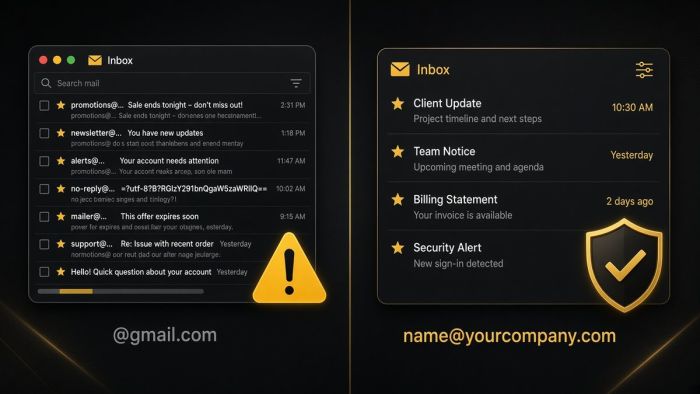
If your business email ends in @gmail.com, you are taking on risks you may not see until something goes wrong. Here is what they are, and how Portland-area businesses move to professional email on their own domain.

Most small business owners I talk to picture hackers working hard to break into their network. The truth is usually more boring and more worrying. Often nobody breaks in at…