
Microsoft 365 Backup for Small Business: Why OneDrive Sync Isn’t a Backup (and How to Fix It)
Last updated:
“It’s all in the cloud, so it’s backed up, right?”
I hear some version of that question from Portland-area business owners almost every week. It’s a fair assumption. Your email lives in Exchange Online, your files sync to OneDrive and SharePoint, and Microsoft runs some of the biggest data centers on the planet. Surely they’ve got a copy.
They do keep your service running. But keeping the service running and being able to hand you back last Tuesday’s version of your client folder are two different jobs. This post walks through the difference, the everyday ways small offices lose Microsoft 365 data, and a practical five-step plan to get a real backup in place.
Sync Is Not Backup
OneDrive and SharePoint sync your files. Sync is great: you save a spreadsheet on your laptop, and it shows up on your phone and your coworker’s desktop a moment later.
The catch is that sync copies everything, including mistakes. If someone deletes a folder, the deletion syncs. If ransomware encrypts the files on one laptop, the encrypted versions sync up to the cloud and back down to every other device connected to that library. Sync keeps all your copies identical. A backup does the opposite: it keeps an older, separate copy that a mistake or an attack on the live copy can’t touch.
What Microsoft Actually Covers
Microsoft is responsible for the platform: the servers, the data centers, keeping Exchange and SharePoint online. You’re responsible for your data and who can get to it. Microsoft’s own Services Agreement recommends that customers regularly back up their content and data.
Microsoft 365 does include some safety nets, and they’re worth knowing about:
- Recycle bins. Deleted OneDrive and SharePoint files go to a recycle bin and then a second-stage recycle bin before they’re gone for good. Microsoft explains how long items stay there in its retention and deletion guide.
- Restore your OneDrive. Business OneDrive accounts can roll back to an earlier point in time, which can undo a mass deletion or a ransomware event, within a limited window.
- Recoverable items in Outlook. Deleted email can be recovered for a limited time after it’s emptied from Deleted Items.
These are helpful for “oops, I deleted that yesterday.” They’re not designed to be your long-term backup. They have time limits, they’re managed inside the same account an attacker might take over, and they disappear when a user’s account is deleted.
How Small Offices Actually Lose Microsoft 365 Data
None of these are exotic. They’re the calls we get.
1. Someone leaves, and their account gets deleted. An employee moves on, the license gets removed to save money, and a few weeks later someone needs a contract or an email thread that only lived in that person’s mailbox or OneDrive. Once the account is fully removed, that data goes with it.
2. A sync mistake wipes a shared folder. A user drags the wrong folder, or “cleans up” a synced library on their laptop, and the deletions roll out to everyone. Nobody notices until the recycle bin window has closed.
3. Ransomware or a compromised account. If an attacker gets into a mailbox or OneDrive, they can delete or encrypt files and email, and empty the recycle bins on the way out. We wrote about how that first break-in usually happens in our posts on credential stuffing and what to do if your business email shows up in a breach.
4. Overwritten files. A shared price sheet or client tracker gets saved over with the wrong data. Version history may help, but only if versioning is on and you know which version you need.
5. Records you have to keep. Medical, legal and financial offices often have rules about how long records must be kept. “It was in the recycle bin” isn’t a retention policy. Our post on HIPAA and ransomware for small practices covers what the Security Rule expects.
A Five-Step Microsoft 365 Backup Plan
Here’s the plan I’d walk any small business through.
1. Turn on a dedicated Microsoft 365 backup
Use a backup service built for Microsoft 365 that copies Exchange mail, OneDrive, SharePoint and Teams files to storage outside your Microsoft 365 tenant. Microsoft also offers its own Microsoft 365 Backup product. Whichever route you take, the key questions are the same: what gets backed up, how often, how long it’s kept and who can delete it.
2. Protect the backup itself
The backup should not use the same login as your everyday admin account. Use a separate admin account with multi-factor authentication, and choose a service that keeps backups immutable (they can’t be changed or deleted during the retention period). If an attacker can delete your backups with the same password they stole, it isn’t really a backup.
3. Decide how long to keep things
Set retention based on your business, not the default. A design firm might be fine with a year. A dental office or a CPA firm may need to keep records much longer. Write it down so it’s a decision, not an accident.
4. Handle departing employees on purpose
Before you delete a former employee’s account, make sure their mailbox and OneDrive are captured in your backup (or converted to a shared mailbox and moved to a shared library). Add that step to your offboarding checklist.
5. Test a restore
This is the step almost everyone skips. Once a quarter, pick a real file, a real folder and a real email and restore them. Time how long it takes and note who did it. A backup you’ve never restored from is a guess. Our Q4 IT upkeep checklist is a good place to add it.
Don’t Forget the Rest of Your Data
Microsoft 365 is usually the biggest piece, but it’s rarely the only one. Line-of-business apps, a file server in the back closet, QuickBooks files, and laptops that never sync all need a plan too. That’s where a full backup and disaster recovery plan comes in: knowing what to back up, how fast you need it back and how much data you can afford to lose.
How PDX IT Helps
At PDX Information Technology Services, we set up and monitor backups for small and mid-sized businesses across the Portland metro, including Microsoft 365 mail and files, servers and endpoints, and we schedule recovery tests so you know the backup actually works. Learn more about our backup, disaster recovery and business continuity services, or see what’s included in our managed IT services.
Our managed IT plans are Gold, starting at $100 per user, per month, and Platinum, starting at $180 per user, per month, with a 90-day opt-out: if it’s not a fit in the first 90 days, you can cancel with no penalties.
Not sure whether your Microsoft 365 data is actually backed up? Contact us, email sales@pdxittech.com or call 971-331-4871, Monday through Friday, 7 AM to 6 PM. We’re at 8215 SW Tualatin-Sherwood Rd, Suite 200, Tualatin, OR 97062, and we work with businesses in Portland, Lake Oswego, Beaverton and across the metro.
Frequently Asked Questions
Does Microsoft back up my Microsoft 365 data? Microsoft keeps its service running and offers short-term recovery tools like recycle bins and OneDrive restore. Those have time limits and live inside your own account. Microsoft recommends customers back up their own data.
Is OneDrive a backup? No. OneDrive syncs files, so deletions, overwrites and ransomware-encrypted files sync too. A backup keeps a separate, older copy outside the account.
What happens to email when I delete a former employee’s account? Once the account is fully removed, its mailbox and OneDrive go with it. Back them up or convert them to shared resources before deleting the account.
How often should we test our backups? At least once a quarter. Restore a real file, folder and email, and write down how long it took.
Request an IT assessment
Tell us a little about your business and a PDX IT team member will follow up to schedule an assessment. Prefer to talk? Call 971-331-4871.

About the author: Steve Shaff
Steve Shaff is the owner of PDX Information Technology Services, a managed IT provider he founded in 2020. From the Tualatin office he helps businesses across Portland Metro & Southwest Washington with IT support, cybersecurity and compliance. More about Steve · Contact PDX IT
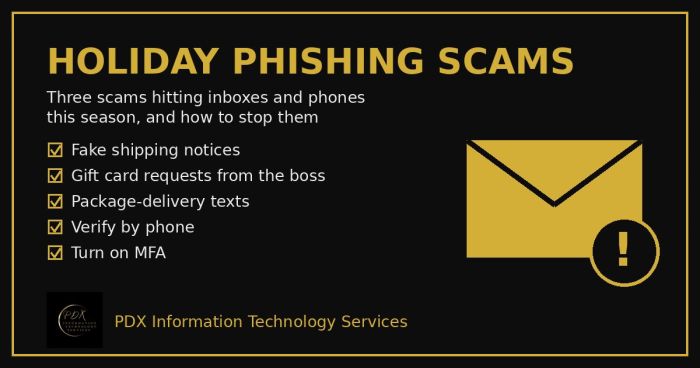
Holiday phishing scams are hitting Portland small businesses: fake shipping notices, gift card requests from the boss and delivery texts. How to stop them.
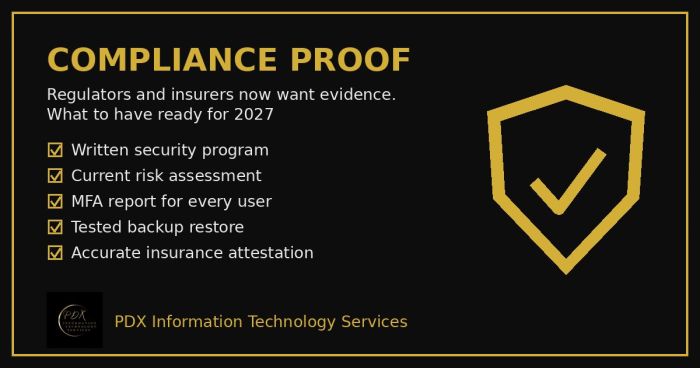
Cybersecurity compliance proof: HIPAA, CMMC, the FTC and cyber insurers now want documented evidence, not promises. See the checklist for 2027.

An email that looks like it’s from an employee asks payroll to switch their bank account before the next payday. It’s a payroll diversion scam. Here’s how it works, the red flags in a real example, and what to do if a paycheck already went out.