
Portland Small Business Mobile Security: How to Protect Phones, Public Wi-Fi and Wireless Devices
Last updated:
Your phone is probably the most important computer in your business, and it is the one you think about the least. It holds your email, your Microsoft 365 apps, your authenticator app, your bank login and a contact list full of customers. It goes everywhere with you: the coffee shop on Boones Ferry, the airport, a client’s lobby, the back seat of a rideshare. That is exactly why attackers like it.
I have been in IT since 1996, and the way small businesses get hurt has shifted. Ten years ago the worry was the office server. Today it is just as often a phone that connected to the wrong Wi-Fi, installed the wrong app, or got left on a counter with no passcode. The good news is that most of the fixes are simple and cost little or nothing.
I also walk through this topic in a short video: Your Phone Is a Target: Mobile and Wireless Security. Here is the written version, as a checklist you can hand to your team.
1. Lock the phone itself
Start with the basics, because they still stop the most common problems.
- Use a real passcode. Six digits or longer, or a passphrase. Face or fingerprint unlock is fine on top of it.
- Turn on auto-lock after a minute or two of inactivity.
- Keep the operating system and apps updated. Turn on automatic updates. Many attacks on phones use holes that have already been patched on updated devices.
- Turn on Find My (iPhone) or Find My Device (Android) so a lost phone can be located, locked or erased.
If a phone with company email on it has no passcode, fix that today. A lost unlocked phone is an open door to your inbox.
2. Be careful with public Wi-Fi
Free Wi-Fi at a cafe, hotel or airport is convenient, but you don’t know who set it up or who else is on it. A fake hotspot with a friendly name like “Free Airport WiFi” is an old trick that still works.
- Use your phone’s cellular data or personal hotspot for anything involving email, banking or company apps when you are away from the office.
- Turn off auto-join for open networks so your phone doesn’t quietly reconnect to a network just because it has a familiar name.
- Forget networks you no longer use. Go through your saved Wi-Fi list once in a while and delete the hotel and conference networks.
- Use a VPN your IT provider has set up when you have to work on a network you don’t control.
3. Lock down the office wireless network
Mobile security isn’t only about the phone. Your office Wi-Fi is part of it too.
- Keep a separate guest network for visitors and personal devices, kept apart from the network your computers, printers and file shares use.
- Change the Wi-Fi password when an employee leaves, and don’t print it on a sign in the lobby.
- Update the firmware on your wireless access points and router. These boxes sit in a closet for years and often never get updated.
- Change default admin passwords on the router and access points.
4. Watch out for texts, QR codes and fake apps
Phones get phished too, and the small screen makes fake links harder to spot.
- Treat unexpected texts with links as suspicious, even when they look like they come from your bank, a delivery company or your boss. Go to the website or app directly instead of tapping the link.
- Be careful with QR codes on flyers, parking meters and table tents. A QR code is just a link you can’t read until it opens.
- Only install apps from the official App Store or Google Play, and look twice at the developer name. Fake versions of popular apps do show up.
- Check app permissions. A flashlight app has no reason to read your contacts or messages.
5. Turn off what you don’t use
Bluetooth, AirDrop and Nearby Share are handy, but leaving them wide open in public is unnecessary.
- Set AirDrop to Contacts Only or turn it off when you are not using it.
- Turn off Bluetooth when you don’t need it, especially in crowded places.
- Don’t accept files or pairing requests from devices you don’t recognize.
6. Protect the accounts on the phone
The phone is the key to your accounts, so protect the accounts as well as the device.
- Use multi-factor authentication on Microsoft 365, your bank and any other business account, with an authenticator app rather than text messages where you can.
- Never approve a sign-in prompt you didn’t start. Repeated prompts at odd hours usually mean someone already has your password.
- Use a password manager instead of saving passwords in notes or reusing the same one everywhere. Our post on credential stuffing and leaked passwords explains why reuse is so risky.
7. Decide how personal phones are handled
Most small businesses let people check work email on their own phones. That is fine, as long as you decide the rules up front instead of after a phone goes missing.
- Write a short policy: which apps are allowed to hold company data, what the minimum security settings are, and what happens when someone leaves.
- Use mobile device management (MDM) or Microsoft 365 app protection so company email and files can be removed from a phone without touching personal photos.
- Make removing company data part of offboarding. Our employee offboarding IT checklist covers that step.
What to do if a phone is lost or stolen
Speed matters more than anything else here.
- Use Find My or Find My Device to locate the phone, lock it and, if it’s not coming back, erase it.
- Call your IT provider so they can sign the phone out of Microsoft 365 and remove company data.
- Change the password for the person’s Microsoft 365 account and any accounts saved on the phone.
- Call your mobile carrier to suspend the line, which also helps protect against someone using the number to receive your text-message codes.
How PDX IT Services helps
At PDX Information Technology Services, phones and tablets are part of how we protect a business, not an afterthought. We help with setting up mobile device management, Microsoft 365 security settings and multi-factor authentication, guest and staff Wi-Fi, and help-desk support when a phone goes missing. Learn more about our proactive IT and cybersecurity services, our managed IT services in Portland and our IT help desk.
We are based in Tualatin and work with small businesses across Portland, Lake Oswego, Beaverton, Tigard, Wilsonville and Southwest Washington. Our Gold plan is starting at $100 per user per month, Platinum is starting at $180, and both come with a 90-day opt-out.
If you aren’t sure how well your team’s phones are protected, call us at 971-331-4871 (Monday through Friday, 7 AM to 6 PM) or contact us online to set up a free IT health check.
Request an IT assessment
Tell us a little about your business and a PDX IT team member will follow up to schedule an assessment. Prefer to talk? Call 971-331-4871.

About the author: Steve Shaff
Steve Shaff is the owner of PDX Information Technology Services, a managed IT provider he founded in 2020. From the Tualatin office he helps businesses across Portland Metro & Southwest Washington with IT support, cybersecurity and compliance. More about Steve · Contact PDX IT
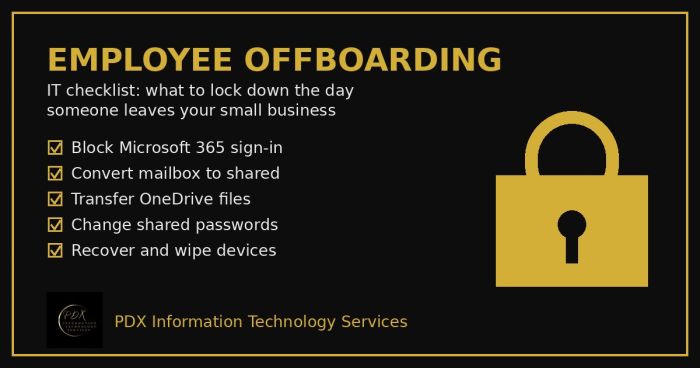
Portland employee offboarding IT checklist: lock Microsoft 365, save the mailbox and OneDrive files, change shared passwords and wipe company devices.
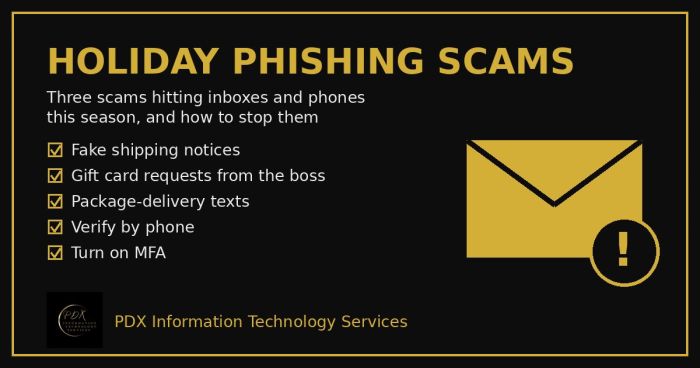
Holiday phishing scams are hitting Portland small businesses: fake shipping notices, gift card requests from the boss and delivery texts. How to stop them.
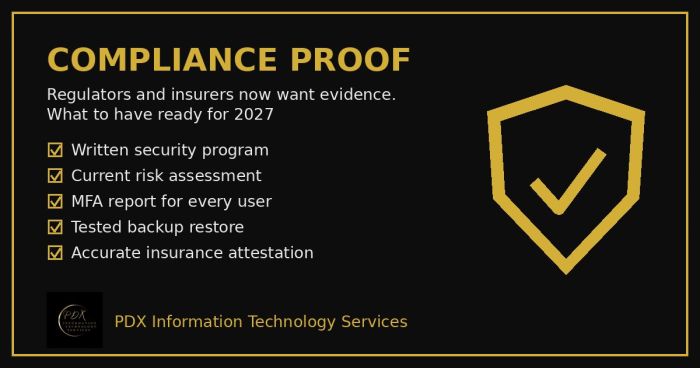
Cybersecurity compliance proof: HIPAA, CMMC, the FTC and cyber insurers now want documented evidence, not promises. See the checklist for 2027.