
Employee Offboarding IT Checklist for Portland Small Businesses: What to Lock Down the Day Someone Leaves
Last updated:
When someone leaves a small business, the goodbye is usually the easy part. The hard part is everything that person could still get into the next morning: their email, the shared drive, the bank portal, the alarm code, the vendor accounts nobody remembers setting up. I have been in IT since 1996, and offboarding is one of the places I most often see small businesses leave a door open without realizing it.
It is rarely about bad intentions. Most people who leave are not trying to cause trouble. The real risk is an account that stays active for months, gets caught up in a breach, and becomes an easy way in for someone else. A clean offboarding closes that door on day one.
Here is the checklist we use at PDX Information Technology Services. Print it, adapt it, and keep it somewhere your office manager can find it.
Before the last day: make a list of what they touch
Offboarding goes faster when you already know what to shut off. Sit down with the manager and write out every system the person uses:
- Their Microsoft 365 (or Google Workspace) account and any shared mailboxes they can open
- Line-of-business apps: accounting, scheduling, EHR or practice management, CRM, payroll
- Vendor and supplier portals, bank and credit card logins, shipping accounts
- Company laptop, phone, tablet, keys, badges and door fobs
- Any shared passwords they know, like the Wi-Fi, the alarm code or a shared admin login
If you can’t build that list easily, that is a sign your business needs better documentation, not just a better offboarding process.
Day one: lock the Microsoft 365 account
This is the most important step, and it should happen as close to the moment they leave as possible.
- Block sign-in on the account in the Microsoft 365 admin center. Don’t delete it yet. Deleting too early can throw away mail and files you still need.
- Reset the password so any saved password on a personal device stops working.
- Sign them out of every session. Microsoft 365 lets an admin revoke active sessions, which kicks the account off phones, tablets and browsers that are already signed in. Changing the password alone doesn’t always do that right away.
- Remove their MFA methods (authenticator app, phone number) so nobody can approve a sign-in from their old phone.
Handle the mailbox the right way
Customers and vendors will keep emailing that address for a while. Don’t let those messages bounce or disappear.
- Convert the mailbox to a shared mailbox and give the manager or replacement access. A shared mailbox doesn’t need its own paid license in most cases, so you can usually free that license up.
- Or set up forwarding to the right person if you would rather not keep the mailbox around.
- Add an automatic reply that tells people who to contact now.
Move their files before anything gets deleted
OneDrive files belong to the user account. If that account is deleted without a plan, the files go with it after the retention window runs out.
- Transfer OneDrive files to the manager or a shared SharePoint location.
- Check for files that were shared from their OneDrive to customers or partners, and re-share them from the new location.
- Make sure the work is actually backed up. Sync is not backup, which I covered in why OneDrive sync is not a backup.
Change every shared password they knew
This is the step small businesses skip most often. If the person knew a password that other people also use, it has to change:
- Office Wi-Fi and guest Wi-Fi
- Alarm and door codes
- Shared admin or vendor logins
- Social media accounts for the business
- Any password stored in a shared spreadsheet or notebook (and please move those into a password manager)
Old passwords have a habit of showing up in breach dumps later. If you want to see why that matters, read how credential stuffing turns leaked passwords into break-ins.
Recover devices and wipe company data
- Collect the laptop, phone, tablet, keys and badges on the last day, not “sometime next week.”
- If a company device can’t be returned, use your device management tool to lock it or remotely wipe it.
- For a personal phone that had company email on it, remove company data from that device through Microsoft 365 or your management tool, without touching their personal photos and apps.
- Before handing a returned laptop to someone new, back up anything needed and reset it properly.
Remove them from apps, portals and the building
- Line-of-business apps: accounting, payroll, scheduling, CRM, EHR. Many of these have their own logins that are not tied to Microsoft 365, so they have to be disabled one by one.
- Vendor and bank portals: remove them as an authorized user and update the contact on file.
- Building and door access: deactivate fobs and badges, and update the alarm company’s call list.
- Phones: forward their desk line or extension to the right person and update the voicemail greeting and any phone menu that lists their name.
Document it and keep the record
Write down what you disabled, what you transferred and when. A simple checklist with dates and initials is enough. It helps if anyone asks questions later, and for businesses with HIPAA or other compliance requirements, it is part of showing you control who has access.
Once you are sure nothing else is needed from the account, you can remove the license and delete the account for good.
Make offboarding part of regular maintenance
Even with a good checklist, things slip through. A quick access check every quarter catches old accounts, unused licenses and forgotten vendor logins. That is one of the items on our quarterly IT maintenance checklist.
Want someone to handle this for you?
Offboarding is one of those jobs that is easy to put off and costly to forget. With our managed IT services for Portland businesses, we keep the list of what each person has access to, and when someone leaves, you tell our IT help desk and we work through the checklist with you, from the Microsoft 365 account to the shared passwords.
PDX Information Technology Services is based in Tualatin and supports small businesses across the Portland metro. Call us at 971-331-4871 or contact us here to talk about your offboarding process.
Request an IT assessment
Tell us a little about your business and a PDX IT team member will follow up to schedule an assessment. Prefer to talk? Call 971-331-4871.

About the author: Steve Shaff
Steve Shaff is the owner of PDX Information Technology Services, a managed IT provider he founded in 2020. From the Tualatin office he helps businesses across Portland Metro & Southwest Washington with IT support, cybersecurity and compliance. More about Steve · Contact PDX IT
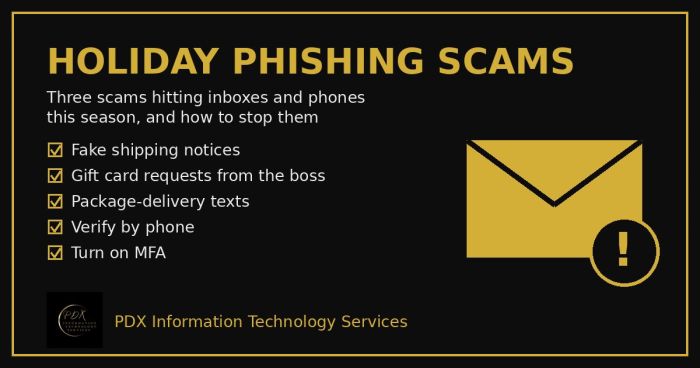
Holiday phishing scams are hitting Portland small businesses: fake shipping notices, gift card requests from the boss and delivery texts. How to stop them.
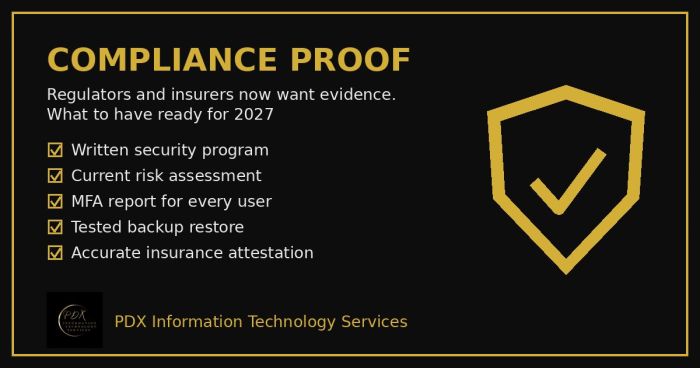
Cybersecurity compliance proof: HIPAA, CMMC, the FTC and cyber insurers now want documented evidence, not promises. See the checklist for 2027.
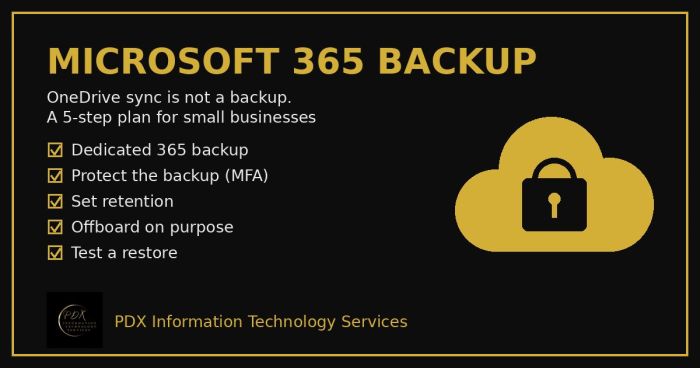
Microsoft 365 backup for small business: why OneDrive sync and the recycle bin aren’t a real backup, what can go wrong and a 5-step fix you can test.