
The Death of Windows 7
Microsoft has discontinued extended support for Windows 7, as of January 14, 2020. This means that there will no longer be any security patches, software updates or tech support for this operating system.
Now, on Windows 7 PCs, you will get a lovely blue screen stating that it is ‘strongly recommended’ that you upgrade to Windows 10. It seems to me that a great many people have waited until now to upgrade their old Windows 7 PCs. Leaving questions of What is the process to upgrade? What does it cost? Do I really have to?
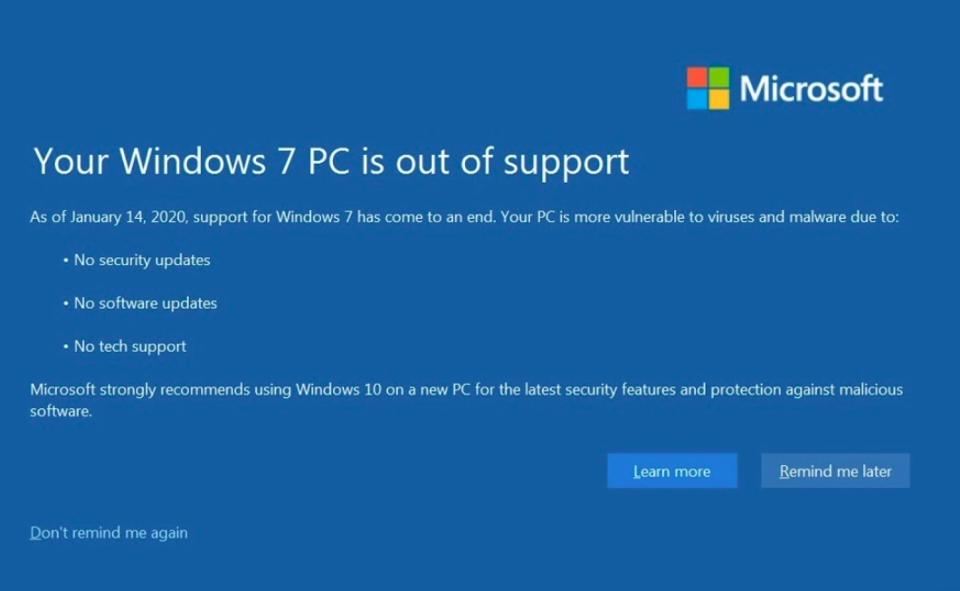
I would like to answer the second and third questions first. The cost of upgrading to Windows 10, as far as an operating system cost, is free. However, there are many products that work poorly on Windows 10 or simply do not work at all. I would suggest performing the upgrade on a test machine first to make sure that all of your business applications still work.
Do you have to upgrade? Well, the answer really is no. HOWEVER!!! (notice the caps) There is a risk in not running a supported operating system. As I stated above, there are no patches and no tech support from Microsoft. So, if there is a hole that a ‘bad guy’ can exploit, even if it is known about, Microsoft will not fix it. And Honestly, it is not worth the risk, even on a home PC that you are only doing some online shopping (using your credit card) and/or managing your bank account. -see where I am going with this-
The process to upgrade is relatively easy, but will take time to complete. I should note at this point, only Windows 7, Windows 8 and Windows 8.1 are able to upgrade to Windows 10. For those who are running Windows XP or Vista, no free upgrade for you. – No Soup – And you would not want do it anyways, given the performance hit that you would take with running on such old hardware.
The process for Upgrading to Windows 10:
First thing you want to do is to log into the PC as an Administrator, either local or domain administrator. Then download the Windows 10 upgrade tool, at the following link address. https://go.microsoft.com/fwlink/?LinkId=691209
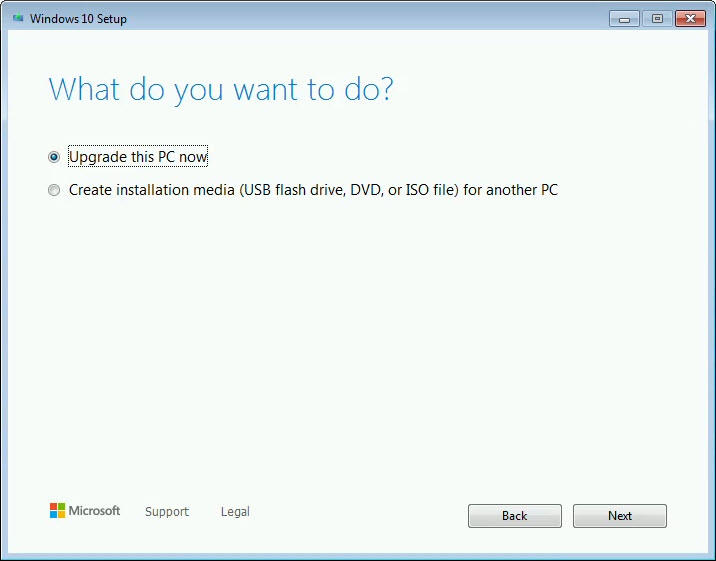
A dialog box will open and select ‘Upgrade this PC now’. This takes a few minutes then a new dialog box will appear.
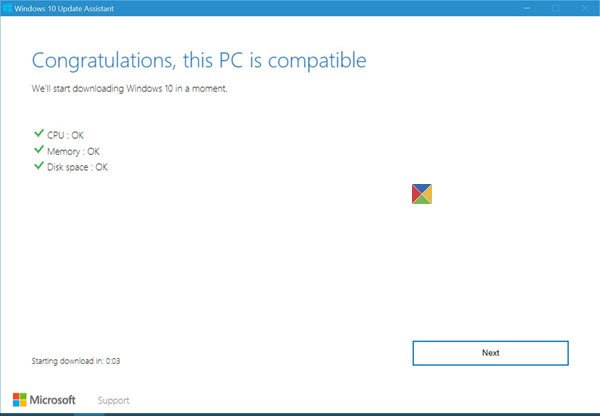
If there are any compatibility problems or issues that are presented, you will need resolve them before proceeding forward.
Now, we are ready to install. At this time, it would be a good idea to go to Starbucks to get some coffee. By the time you get back, it may be almost done.
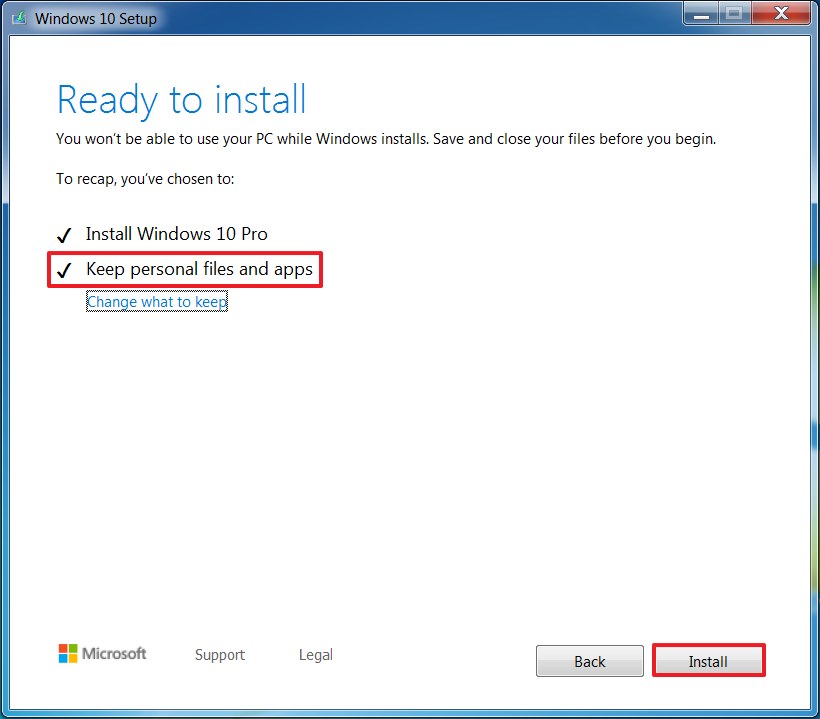
The system will reboot several times, DO NOT Touch. When the system has completed the upgrade process, a new login page will be displayed.
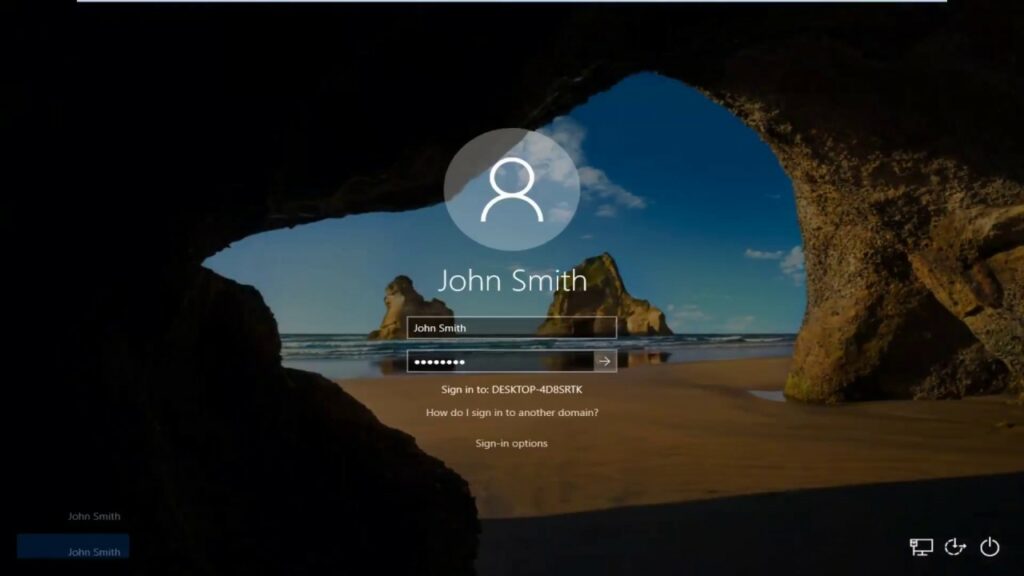
CONGRATULATIONS on upgrading your Windows 7 PC to Windows 10. Remember to install all of the Windows 10 patches from the system > Update & Security Page.
Get In Touch
Share On Social Media
Other Recent Blog Articles

The Voice on the Phone Isn’t Who You Think It Is: AI Scams Are Coming for Portland Small Businesses
A few years ago, “phishing email” was the scariest phrase in small business IT. Bad spelling, a sketchy link, a fake invoice from “Microsoft Support.” Most of us got pretty…

Your Cybersecurity Is Only as Strong as Your Weakest Vendor
The Nintendo TinyPulse Breach Is a Wake-Up Call for Every Business Nintendo is one of the most recognized brands on the planet. They guard their intellectual property fiercely, have weathered…

Fake IT Workers Are Showing Up at Offices — And They’re After Your Data
Cybercrime has never been more brazen. Ransomware gangs have long relied on phishing emails and malicious software to compromise businesses — but a group known as the Silent Ransom Group has taken…