
Dental Office IT Basics: Front Desk PCs, Imaging, and Patient Data
I went in for a cleaning, glanced at the screens, and noticed something that stuck with me: the practice was still running Windows 10 on the machines I could see. That short visit became a Breaking Down IT episode, and the lesson is still useful for Portland-area dental offices long after Microsoft ended free Windows 10 support.
The short answer: dental IT fails rarely start with fancy malware. They start with unsupported front-desk PCs, imaging software that nobody tested after an OS change, backups that never cover the X-ray archive, and a busy reception computer that can reach everything. Fix those basics before you buy another shiny tool.
This is a different angle from our earlier HIPAA and ransomware Security Rule guide. That post was about what federal rules expect after ransomware. This one is a practical how-to for the workstations and workflows a dental office lives on every day.
What the dentist visit actually showed
In the video, I talk through a routine cleaning visit where I noticed Windows 10 still in use. At the time, Microsoft was heading toward end of support in mid-October. Officially, Windows 10 Home and Pro support ended on October 14, 2025 (Microsoft lifecycle). After that date, those PCs keep working, but they stop getting regular security updates unless you have a separate extended-updates arrangement.
I also noted that this particular practice had about 20 locations. That matters. You cannot flip twenty offices overnight. Practice management software (PMS), imaging viewers, sensors, printers, and card readers all have to be tested so the upgrade does not break the day. As I said in the video: test, upgrade, test again, and confirm it still works for the people using it.
I am not naming the practice, and I am not claiming they are a client. This was a patient observation that turned into a checklist other dental teams can use.
Why dental offices feel this harder than a typical SMB
A dental office is not just email and Office. You usually have:
- Front-desk PCs that handle scheduling, insurance, and patient check-in
- Chairside or operatory machines tied to sensors and cameras
- Imaging servers or NAS boxes holding radiographs and scans
- Cloud or on-site practice management software that must stay available during clinic hours
- Vendors who remote in for imaging or PMS support
When one of those pieces sits on an unsupported operating system, or when an OS upgrade lands without software testing, the pain shows up as missed appointments, broken imaging, angry patients, and a scramble that looks a lot like an outage even when nobody "got hacked."
A practical dental office IT checklist
1. Inventory every PC that touches charts or images
List front desk, back office, operatories, imaging workstations, and any leftover "temp" laptop. Note the OS version and whether it still receives security updates. Unsupported endpoints are a patient-data risk, not just an IT preference.
2. Treat PMS and imaging as the real upgrade gate
Before you move an office to a newer OS, ask the PMS and imaging vendors which versions they support. Build a test machine. Confirm sensors, X-ray acquisition, printing, and the daily front-desk flow. Multi-location groups should pilot one office, then roll forward. Skipping the test is how a "simple upgrade" becomes a clinic-wide mess.
3. Separate "the computer works" from "the software works"
Windows can boot and still leave you with a broken charting module or a viewer that will not open yesterday's bitewings. Your go-live criteria should be clinical: can the team schedule, chart, acquire, and retrieve images without workarounds?
4. Back up charts and imaging on purpose
File sync is not a backup. Make sure practice management data and the imaging archive both have tested restores, with a copy that ransomware or a bad upgrade cannot wipe in one click. See our guide on backup and business continuity.
5. Lock down the front desk without slowing check-in
The reception PC is often the most-phished device in the building. Use unique accounts (no shared "front desk" password on a sticky note), MFA on email and cloud PMS, and least privilege so the check-in login cannot administer the imaging server. Train the team on fake shipping texts, fake invoice PDFs, and "update your password" emails that show up during busy mornings.
6. Keep patient data on the right systems
Charts and images should live in systems you manage and back up, not in random personal OneDrive folders, text threads, or a volunteer's USB drive. If a vendor needs remote access, document who can dial in and how they authenticate.
7. Tie the technical work to HIPAA, without turning this into a legal memo
Unsupported endpoints, weak access control, and untested restores show up in risk analysis conversations for a reason. If you need the Portland-area HIPAA IT path, start with our HIPAA IT services page and the HIPAA compliance overview. For the Security Rule / ransomware deep dive, use the earlier post linked above.
A one-week action plan for a single-location practice
- Export a device list (or walk the floor with a notepad) and mark unsupported OS installs.
- Call your PMS and imaging vendors for current supported OS versions.
- Confirm last successful restore of charts and of imaging.
- Turn on MFA everywhere the front desk signs in for email or cloud apps.
- Schedule a pilot upgrade on one non-critical machine before touching operatories.
Multi-location groups should add a written roll-out order and a rollback plan per site. Twenty offices means twenty chances to discover a weird printer driver or sensor cable the vendor forgot to mention.
How PDX IT helps
PDX IT Services works with Portland-area practices from our Tualatin office at 8215 SW Tualatin-Sherwood Road, Suite 200. We help dental and other healthcare offices inventory endpoints, plan OS and application upgrades without breaking imaging, tighten front-desk access, and align day-to-day IT with HIPAA-minded controls.
See HIPAA IT services, proactive cybersecurity, and managed services. Managed plans include a 90-day opt-out.
FAQ: dental office IT basics
What IT fail did the dentist video call out?
In "Steve's Trip to the Dentist Exposes a Massive IT Fail," Steve describes spotting Windows 10 still in use at a multi-location dental practice and stresses testing practice software before OS upgrades so clinical workflows keep working.
Is Windows 10 still supported?
Microsoft ended free support for Windows 10 Home and Pro on October 14, 2025. Machines still run, but without ongoing security updates they become a growing risk for any office that stores patient information.
Do we have to upgrade every operatory the same week?
No. Pilot, validate PMS and imaging, then roll location by location. Rushing twenty sites at once is how you multiply one bad driver into a regional outage.
Is this the same as a HIPAA risk analysis?
No. This is an operations checklist for endpoints, imaging, backups, and front-desk hygiene. A formal risk analysis is broader. Use our HIPAA pages when you need that track.
Can PDX IT work alongside our imaging vendor?
Yes. We coordinate with PMS and imaging vendors so remote access, upgrades, and backups are documented instead of improvised.
Want a dental office IT walkthrough?
Contact us, call Steve at 971-331-4871, or email sales@pdxittech.com. We will help you inventory what is online, what is unsupported, and what to fix first.
This article is general information for practice owners and office managers, not legal or compliance advice. Follow current Microsoft, vendor, and HHS guidance for your exact systems.
Request an IT assessment
Tell us a little about your business and a PDX IT team member will follow up to schedule an assessment. Prefer to talk? Call 971-331-4871.

About the author: Steve Shaff
Steve Shaff is the owner of PDX Information Technology Services, a managed IT provider he founded in 2020. From the Tualatin office he helps businesses across Portland Metro & Southwest Washington with IT support, cybersecurity and compliance. More about Steve · Contact PDX IT
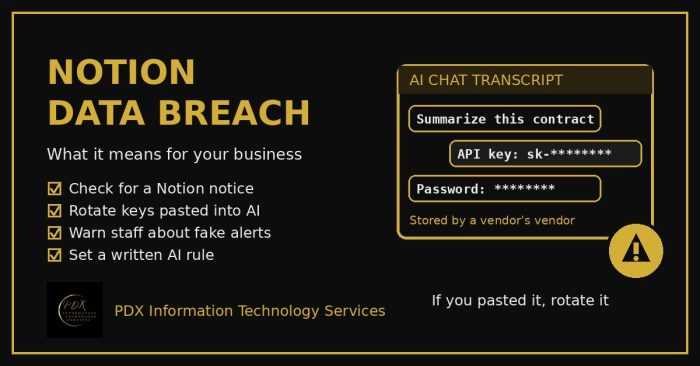
The Notion data breach came through an AI vendor, Fireworks AI, and exposed Notion AI chat transcripts for under 1% of workspaces. Here’s what Portland-area business owners should check, rotate and change this week, plus the AI rule every team needs.

Crédit Mutuel Arkéa says attackers reached it through a service provider platform and used the bank’s own account for fraudulent transfers. Practical third-party portal lessons for Portland SMBs.
Queens Public Library kept branches open during a ransomware-driven outage while digital services failed. Continuity lessons for Portland-area small businesses.